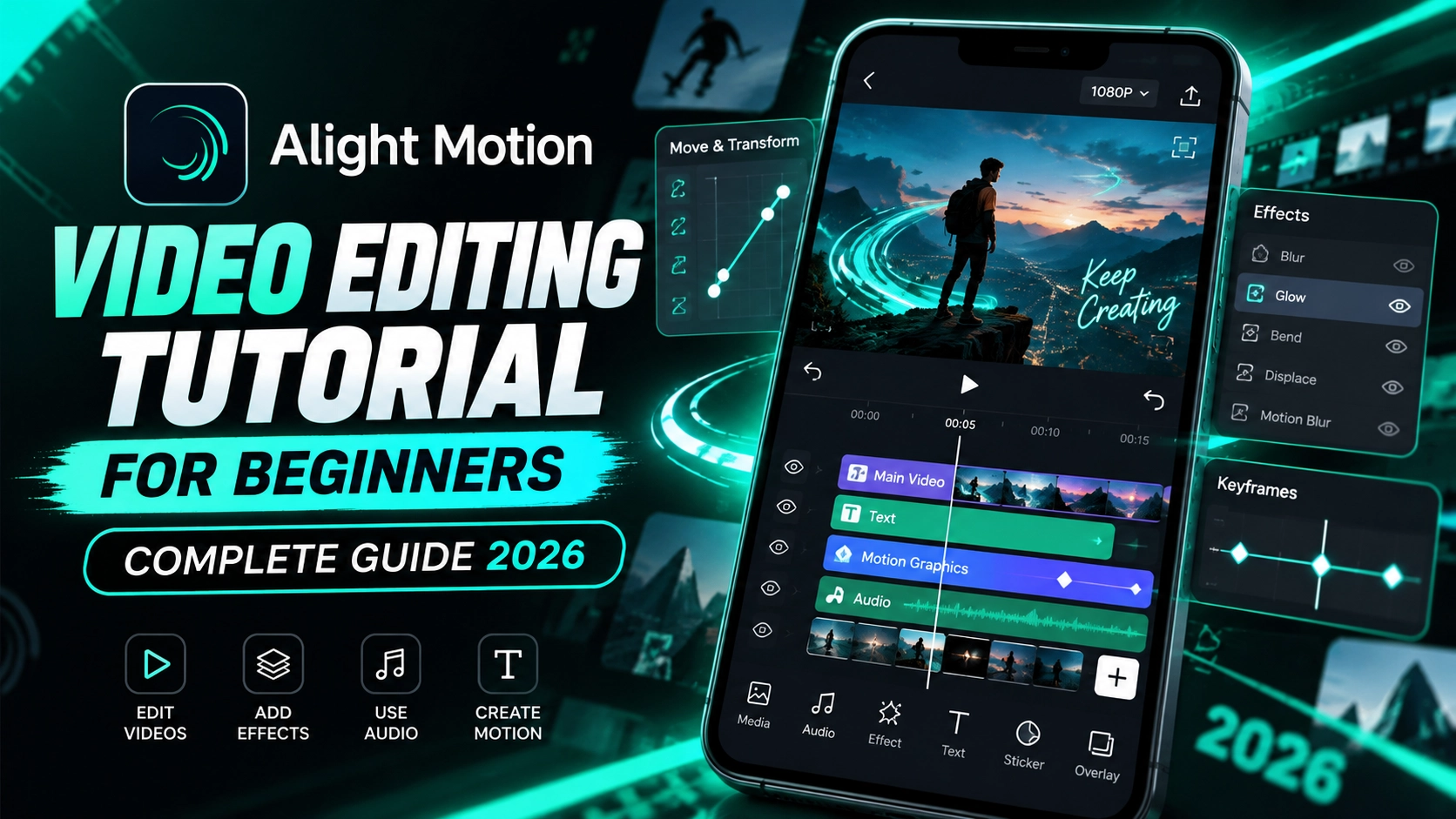
Do you want to create amazing videos without using expensive editing software? Alight Motion makes video editing simple, creative, and fun. You can add smooth transitions, colorful effects, animated text, and professional-looking graphics directly from your phone.
Whether you create YouTube Shorts, Instagram Reels, or TikTok videos, this beginner-friendly guide will help you improve your editing skills. You do not need any previous experience. Just follow these easy steps and start creating eye-catching videos today.
What Is Alight Motion and How Does It Work?
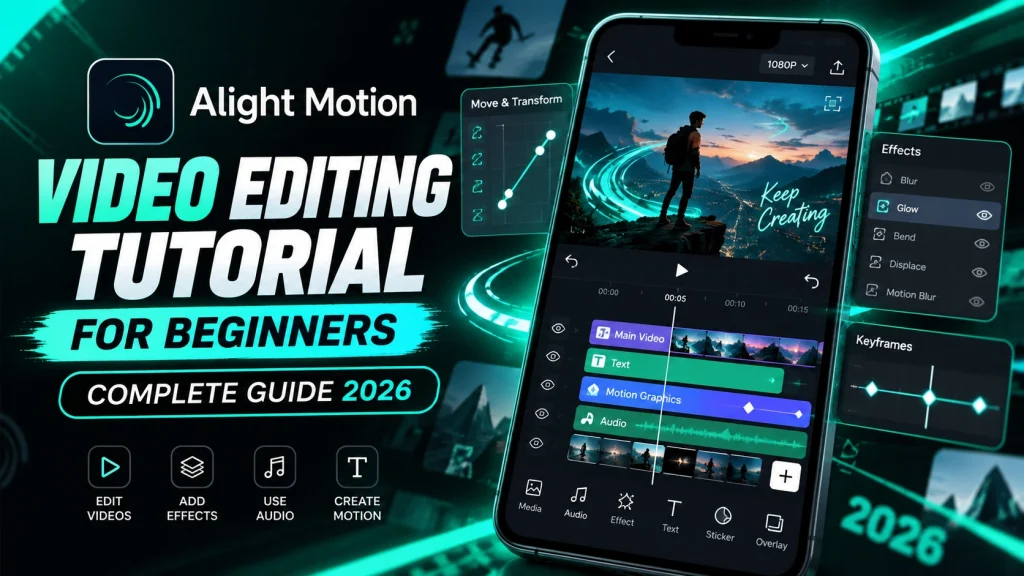
Alight Motion is a mobile video editing and motion graphics app. It helps users create videos with animations, visual effects, text, and multiple layers. Its editing tools give beginners more control over their creative projects.
The Alight Motion app also supports keyframe animation. This feature lets you move objects, change their size, and create smooth motion between different points.
Key Features for Beginners
- Multi-Layer Editing: Add videos, images, shapes, and text on separate layers.
- Keyframe Animation: Create smooth movement and animated effects.
- Visual Effects: Improve your videos with blur, color, and motion effects.
- Text Animation: Create animated titles and captions.
- Export Options: Save your finished videos in supported formats.
These features help beginners create attractive videos without complicated editing steps.
How to Download and Set Up Alight Motion
Before you start editing, install Alight Motion on your smartphone. You can find the official app through supported app stores.
Follow these steps to set up your editing workspace.
Step-by-Step Installation Guide
- Open the Google Play Store or Apple App Store.
- Search for Alight Motion.
- Select the official app and tap Install or Get.
- Open the app after installation.
- Allow the permissions needed to import and save media.
- Explore the home screen and available editing tools.
You can now create your first project. Make sure your device has enough free storage for your videos.
How to Create Your First Video Project
Creating a new project is the first step in video editing. Alight Motion provides project settings that help you choose the right video format.
Open Alight Motion and tap the plus (+) button to start a project. Then select your preferred size, resolution, frame rate, and background color.
Recommended Project Settings
| Setting | Recommended Option |
|---|---|
| Aspect Ratio | 9:16 for Shorts and Reels |
| Resolution | 1080p |
| Frame Rate | 30 FPS |
| Background | Black or Transparent |
Choose settings based on the platform where you plan to upload your video.
For example, vertical videos work well for TikTok and Instagram Reels. Horizontal videos usually work better for standard YouTube content.
How to Import and Edit Videos in Alight Motion
Once you create a project, you can import your video clips. Alight Motion lets you arrange media on a timeline and edit clips separately.
You can use Alight Motion to trim unwanted footage, adjust clip positions, and combine several videos into one project.
Basic Video Editing Steps
- Tap the add (+) button inside your project.
- Select Media and choose a video from your device.
- Place the video on the timeline.
- Select the clip to access editing controls.
- Trim unwanted parts from the beginning or end.
- Adjust the clip size and position.
- Preview your changes before moving forward.
Keep your first project short. A 15-second video gives you enough practice without making editing difficult.
How to Add Text and Animations
Animated text makes videos more engaging. Alight Motion offers useful text and animation controls for titles, captions, and creative messages.
With Alight Motion, you can change font styles, text colors, sizes, and positions. You can also animate text to make it appear or disappear smoothly.
Steps to Animate Text
- Open your editing project.
- Tap the plus (+) button and select Text.
- Type your title or caption.
- Choose a clear font and readable text color.
- Position the text on your video.
- Add keyframes to create movement or size changes.
- Preview the animation and adjust its timing.
Avoid using too many text effects. Simple animations often look cleaner and more professional.
How to Use Keyframe Animation in Alight Motion
Keyframes help you control movement in your videos. Alight Motion uses keyframes to animate properties such as position, rotation, scale, and opacity.
You can create smooth zoom effects, moving text, and animated shapes with Alight Motion by setting different values at different points on the timeline.
Simple Keyframe Animation Tutorial
- Select the layer you want to animate.
- Open the relevant animation or transformation controls.
- Move the playhead to the starting point.
- Add your first keyframe.
- Move the playhead forward.
- Change the position, size, or rotation.
- Preview the movement between the keyframes.
Start with basic movement before trying advanced animation techniques. This approach makes learning easier.
How to Add Effects and Transitions
Effects and transitions help improve the visual style of your videos. Alight Motion includes tools for color adjustments, blur, and creative motion effects.
You can also use Alight Motion to build transitions between clips. Good transitions make scene changes look smooth and natural.
Beginner-Friendly Effects to Try
- Blur Effect: Create a soft background or highlight the main subject.
- Color Adjustment: Improve brightness, contrast, and overall appearance.
- Fade Effect: Make an element appear or disappear gradually.
- Zoom Animation: Draw attention to important details.
- Rotation Animation: Add movement to text, images, or shapes.
Use only the effects that support your video’s message. Too many effects can distract viewers.
How to Export High-Quality Videos
After completing your project, you need to save the final video. Alight Motion offers export controls that help you choose the output quality.
Before exporting from Alight Motion, preview your entire video. Check the text, timing, transitions, and sound.
Best Export Settings for Beginners
- Resolution: Choose 1080p when supported by your project and device.
- Frame Rate: Use 30 FPS for most beginner projects.
- Format: Select MP4 when available.
- Quality: Choose a suitable high-quality option.
- Storage: Keep enough free space for the exported file.
Higher settings may increase file size and export time. Choose settings that match your device’s performance.
Common Video Editing Mistakes to Avoid
Beginners often make small mistakes that reduce video quality. Alight Motion gives you many creative tools, but using them wisely produces better results.
When learning Alight Motion, focus on clean editing, readable text, smooth transitions, and simple animations.
Mistakes Beginners Should Avoid
- Adding too many effects to one video.
- Using small or difficult-to-read text.
- Choosing the wrong aspect ratio.
- Making transitions too fast.
- Ignoring background audio quality.
- Exporting without reviewing the final video.
Practice regularly and improve one editing skill at a time.
Final Thoughts
Learning video editing becomes easier when you follow a clear process. Alight Motion provides useful tools for creating animated text, smooth effects, and engaging videos on your phone.
Start with a simple project and practice basic editing techniques. As your confidence grows, explore advanced features in Alight Motion and develop your own editing style.
Remember, great video editing depends on creativity, practice, and attention to detail. Keep experimenting and enjoy the learning process.
1 thought on “Alight Motion Video Editing Tutorial for Beginners – Complete Guide 2026”