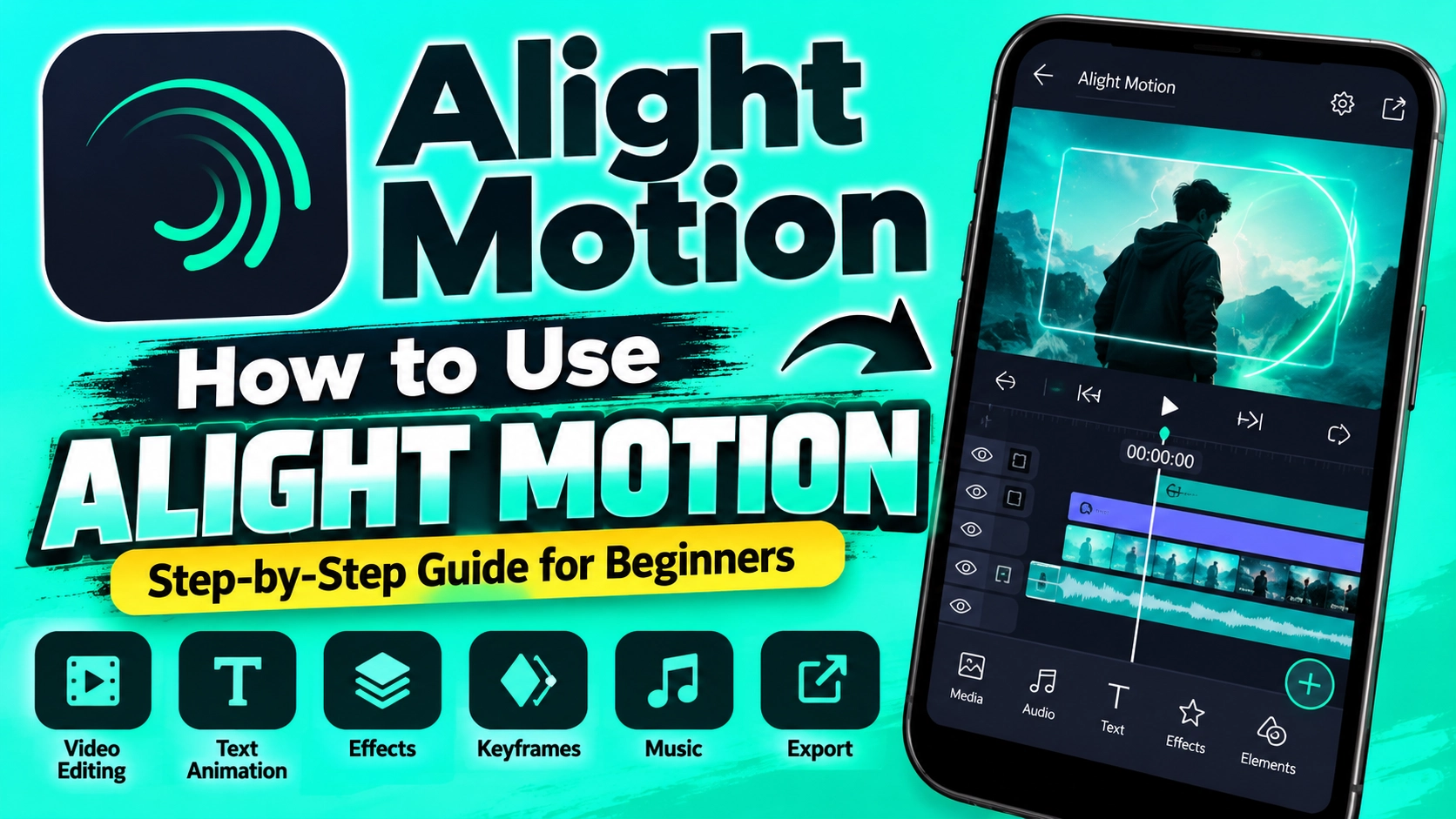
Alight Motion
Do you want to create professional videos using your smartphone? Alight Motion makes video editing easy and creative. You can add animations, text, effects, music, and smooth transitions to your videos.
Many beginners find video editing difficult at first. However, you can learn basic editing skills with a few simple steps. You do not need expensive equipment or advanced technical knowledge.
In this guide, you will learn how to use Alight Motion from start to finish. Follow these easy instructions to create attractive videos for YouTube, Instagram, TikTok, and other social media platforms.
What Is Alight Motion?
Alight Motion is a popular mobile video editing and motion graphics application. It allows users to create animated videos, add visual effects, and edit multiple layers.
The Alight Motion app offers useful tools for beginners and experienced editors. You can create simple videos or explore advanced animation features as your editing skills improve.
Main Features of the App
- Video Editing: Trim, arrange, and customize video clips.
- Keyframe Animation: Create smooth movement between different points.
- Visual Effects: Add blur, color adjustments, and creative effects.
- Text Animation: Design animated titles and captions.
- Multiple Layers: Combine videos, images, text, and graphics.
- Export Options: Save videos in supported formats and resolutions.
These features help you produce engaging content directly from your smartphone.
How to Download and Install Alight Motion
Before editing your first video, you need to install Alight Motion on your device. The application is available through official app stores on supported Android and iOS devices.
Follow these simple steps to download Alight Motion safely.
Step-by-Step Installation Process
- Open the Google Play Store or Apple App Store.
- Type the app name into the search bar.
- Select the official application.
- Tap the Install or Get button.
- Allow the installation to finish.
- Open the application.
- Grant the necessary media permissions.
Make sure your smartphone has enough storage space. A stable internet connection can also help during installation.
How to Create a New Project
Creating a project is the first step toward making your video. Alight Motion offers different project settings based on your editing requirements.
When you open Alight Motion, look for the plus (+) button. Tap it to access the new project options.
Choose the Right Project Settings
Select the settings that match your video platform.
| Project Setting | Recommended Value |
|---|---|
| Aspect Ratio | 9:16 for Reels and Shorts |
| Resolution | 1080p |
| Frame Rate | 30 FPS |
| Background | Black or Transparent |
For standard YouTube videos, you can choose a 16:9 aspect ratio.
After selecting your settings, create the project to open the editing workspace.
How to Import Photos and Videos
After creating a project, you can start adding media files. Alight Motion allows you to work with videos, photos, and other supported media.
The Alight Motion timeline helps you arrange these files in the correct order. You can move clips and adjust their duration.
Steps to Import Media Files
- Open your project.
- Tap the plus (+) icon.
- Select the Media option.
- Browse your device’s files.
- Choose your preferred photo or video.
- Add the selected media to the timeline.
- Adjust its position and duration.
Use clear images and high-quality videos for better results.
How to Trim and Edit Video Clips
Trimming helps you remove unwanted parts of your video. Alight Motion includes basic editing controls that make this process simple.
You can use Alight Motion to shorten clips, adjust their timing, and arrange scenes. Clean editing makes your content more enjoyable to watch.
Basic Video Trimming Steps
- Select the video layer on the timeline.
- Move the playhead to the section you want to edit.
- Use the available trimming or splitting controls.
- Remove unnecessary footage.
- Adjust the remaining clip duration.
- Preview your changes.
Keep your videos short and interesting. Remove long pauses and unnecessary scenes.
How to Add Text to Your Videos
Text helps viewers understand your message. Alight Motion allows you to add titles, subtitles, and creative captions.
You can customize text using different fonts, colors, sizes, and positions. Alight Motion also supports text animation through keyframes and other editing controls.
Steps to Add Text
- Tap the plus (+) button.
- Select the Text option.
- Type your title or caption.
- Choose a readable font.
- Adjust the text size and color.
- Position the text on your video.
- Set how long the text appears.
Use short text with strong contrast. This makes your captions easier to read on mobile screens.
How to Add Effects and Transitions
Effects make your videos more visually appealing. Alight Motion provides various effects that can improve your editing style.
You can use Alight Motion to add blur, adjust colors, and create animated transitions between scenes.
Best Effects for Beginners
- Blur Effect: Soften backgrounds or create visual depth.
- Glow Effect: Highlight important objects or text.
- Color Adjustment: Improve brightness and contrast.
- Fade Effect: Create smooth entrances and exits.
- Zoom Effect: Focus attention on important details.
How to Apply an Effect
- Select your video or image layer.
- Open the Effects section.
- Tap Add Effect.
- Choose your preferred effect.
- Adjust the available settings.
- Preview the result.
Avoid using too many effects. Simple editing often produces cleaner videos.
How to Use Keyframe Animation
Keyframe animation is one of the most useful features of Alight Motion. It allows you to control movement, size, rotation, and transparency.
With Alight Motion, you can animate images, text, and shapes by changing their properties at different points on the timeline.
Steps to Create Keyframe Animation
- Select the layer you want to animate.
- Open Move & Transform or another supported property control.
- Place the playhead at the starting position.
- Add your first keyframe.
- Move the playhead forward.
- Change the object’s position or size.
- Preview the animation.
Start with simple movements. Once you understand keyframes, experiment with more creative animations.
How to Add Music and Audio
Music makes videos more engaging and entertaining. Alight Motion allows you to add supported audio files to your editing projects.
You can adjust the audio timing and volume inside Alight Motion. This helps you match music with video clips and transitions.
Steps to Add Background Music
- Open your editing project.
- Tap the plus (+) button.
- Choose the Audio option.
- Select a supported audio file.
- Add it to the timeline.
- Adjust its starting position.
- Set the volume to a suitable level.
- Preview the video with sound.
Use music that you own or have permission to use. Keep the background volume low when your video includes spoken instructions.
How to Export Your Final Video
After completing your edits, save your project as a video. Alight Motion provides export settings that let you control output quality.
Before exporting from Alight Motion, check your video carefully. Make sure the animations, text, transitions, and audio work correctly.
Recommended Export Settings
- Resolution: 1080p for clear video quality.
- Frame Rate: 30 FPS for standard videos.
- Format: MP4 when available.
- Quality: Choose a suitable high-quality setting.
- Storage: Keep enough free space on your device.
Tap the export button, select the available settings, and start exporting. The time required depends on your device and project complexity.
Some export options may require a paid subscription.
Common Mistakes Beginners Should Avoid
New editors sometimes make mistakes that reduce video quality. Alight Motion offers many editing features, but you should use them carefully.
When practicing with Alight Motion, focus on simple techniques before trying complicated effects.
Common Editing Mistakes
- Adding too many animations.
- Using difficult-to-read fonts.
- Selecting the wrong video resolution.
- Making transitions too fast.
- Using loud background music.
- Ignoring video preview.
- Exporting with unsuitable settings.
Practice regularly and review your videos to improve your editing skills.
Conclusion
Learning mobile video editing does not have to be difficult. Alight Motion provides practical tools for beginners who want to create professional-looking videos.
Start by understanding the timeline, importing clips, and adding simple text. Then explore effects, animations, and audio editing.
With regular practice, you can use Alight Motion to create impressive social media videos. Keep your editing simple, stay creative, and continue learning new techniques.
Remember that great video editing takes patience, creativity, and consistent practice.
1 thought on “How to Use Alight Motion Step-by-Step Guide for Beginners (2026)”