Alight Motion
You spend hours editing a video. You add smooth transitions, beautiful effects, and perfect animations. Everything looks amazing until you export your video and notice a watermark. Frustrating, right?
Don’t worry! You can explore several ways to remove or hide the watermark from your videos.
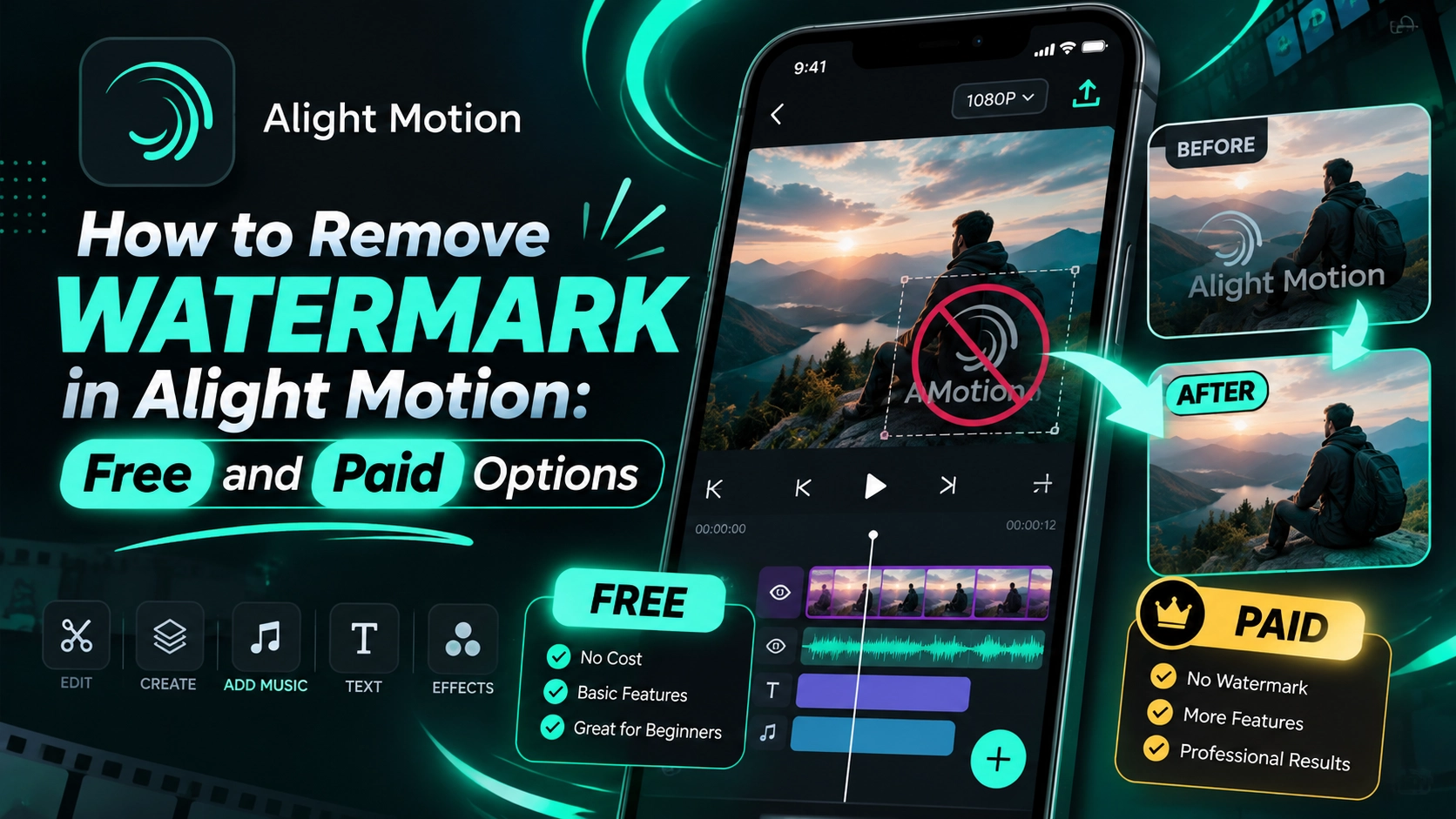
Alight Motion is a popular video editing app that helps creators make professional animations. However, its free version adds a watermark to exported videos.
In this guide, you’ll learn how to remove the watermark using free workarounds and paid options. We’ll also explain which method gives you the best results without affecting video quality.
What Is the Alight Motion Watermark?
The Alight Motion watermark is a small logo that appears on videos exported using the free version. It identifies the editing app used to create the video.
Many video editing apps add watermarks to their free versions. Alight Motion follows a similar approach and offers watermark-free exports through paid membership.
Why Does the Watermark Appear?
The watermark appears for several reasons:
- It identifies the app used for editing.
- It promotes the video editing platform.
- It distinguishes free exports from paid exports.
- It encourages users to explore premium features.
Although the watermark does not stop your video from playing, it may affect its professional appearance.
How to Remove Watermark in Alight Motion for Free
Want to remove a watermark without paying? Some simple editing tricks may help you hide it.
The free version of Alight Motion does not offer an official watermark-free export feature. However, you can try cropping or covering the watermark after exporting your video.
These methods do not unlock premium features in Alight Motion, and they may affect your video quality or layout.
Method 1: Crop the Watermark
Cropping is one of the easiest free solutions. It works best when the watermark appears near the edge of your video.
Follow these steps:
- Open your exported video in a video editor.
- Select the Crop option.
- Adjust the video frame to exclude the watermark.
- Check that important content remains visible.
- Export your edited video.
- Preview the final result.
Tip: Avoid excessive cropping because it can cut important elements from your video.
Method 2: Cover the Watermark With an Overlay
You can also hide a watermark using a graphic, sticker, or text overlay.
Follow these steps:
- Open your exported video in another editor.
- Add a sticker, logo, or text layer.
- Place it over the watermark.
- Adjust its size and position.
- Preview the entire video.
- Export your final project.
This method works well when the overlay matches your video design. However, it covers the watermark rather than removing it.
How to Remove Watermark in Alight Motion Using Premium
The most reliable option is purchasing an official premium membership.
Alight Motion Premium allows users to export videos without the app’s watermark. It also provides access to additional effects and editing features.
Unlike free workarounds, Alight Motion Premium preserves your original video frame without requiring cropping or overlays.
Steps to Remove Watermark With Premium
Follow this simple guide:
- Open the app on your smartphone.
- Tap the profile icon on the home screen.
- Open My Account.
- Select Membership Options.
- Review the available subscription plans.
- Choose your preferred membership.
- Complete the purchase.
- Open your original video project.
- Export the video again.
Your new export should no longer display the app’s watermark once your eligible membership is active.
Benefits of Premium Membership
Premium users can enjoy:
- Watermark-free video exports.
- Access to premium visual effects.
- More creative editing options.
- Additional animation features.
- A better workflow for professional projects.
Premium is especially useful for creators who regularly produce videos for social media or clients.
Can You Remove the Alight Motion Watermark Without Premium?
Yes, you can sometimes hide the watermark using external editing tools. However, these methods have limitations.
For example, you can crop an exported Alight Motion video or cover the watermark with a custom graphic. Neither method provides a true watermark-free export from the app.
If you want clean videos without changing their appearance, an official Alight Motion membership is the better option.
Free vs Paid Watermark Removal
| Feature | Free Workarounds | Premium |
|---|---|---|
| Cost | Free | Paid |
| Watermark-free export | No | Yes |
| Cropping required | Sometimes | No |
| Original framing | May change | Preserved |
| Additional premium effects | No | Yes |
| Best for | Occasional edits | Regular creators |
The free methods may help with simple projects. Premium provides a more consistent solution.
Why Is the Watermark Still Showing in Alight Motion?
Sometimes, users purchase a subscription but still see a watermark on their exported videos.
This usually means they need to check their account, subscription status, or exported file.
If your Alight Motion watermark remains visible, try the following solutions before contacting support.
Check Your Subscription Status
Open Alight Motion and confirm that your membership is active.
You should also:
- Check that you are using the correct account.
- Confirm that your payment was successful.
- Update the app to its latest available version.
- Reopen the original project.
- Export a fresh video file.
- Make sure you are viewing the new export.
If the issue continues, contact the official support team for assistance.
Is It Safe to Use Alight Motion Mod APK Without Watermark?
You may find websites offering modified versions that promise unlocked premium features and watermark-free exports.
However, unofficial Alight Motion APK files can introduce security and privacy risks. Some modified apps may contain harmful software or behave differently from the official version.
Using an unofficial version of Alight Motion may also cause compatibility problems or prevent you from receiving reliable updates.
Risks of Modified APK Files
Potential problems include:
- Malware or harmful applications.
- Privacy and data security risks.
- Unexpected crashes or export errors.
- Missing official updates.
- Unreliable editing features.
- Possible violations of app terms.
For safer editing, download the official app and use its supported membership options.
Best Tips for High-Quality Alight Motion Videos
Removing a watermark is only one part of creating professional videos. Good editing techniques also improve your final results.
With Alight Motion, you can combine animation, transitions, and visual effects to make attractive content.
Follow these tips to improve your projects:
- Choose the right resolution: Use settings that match your target platform.
- Avoid excessive effects: Keep your edits clean and balanced.
- Use smooth transitions: Connect clips naturally.
- Adjust brightness and contrast: Improve visual clarity.
- Keep text readable: Choose clear fonts and suitable sizes.
- Preview before exporting: Check timing, effects, and audio.
- Save original projects: Keep editable copies for future changes.
These simple habits can help you produce polished videos for YouTube, Instagram, and TikTok.
Frequently Asked Questions About Alight Motion Watermark
Many beginners have questions about watermark removal. Here are answers to some common concerns.
Understanding how Alight Motion handles watermarks helps you choose the right editing method.
1. Can I Remove the Watermark for Free?
You can sometimes hide it by cropping or covering it. However, the free version does not officially support watermark-free exports.
2. Does Premium Remove the Watermark Permanently?
Premium removes the watermark from exports while your eligible membership remains active. Once your subscription expires, the free version’s restrictions return.
3. Will Cropping Reduce Video Quality?
Cropping can reduce the visible area of your video. Enlarging the remaining image may also reduce its sharpness.
4. Can I Remove a Watermark From an Already Exported Video?
You can crop or cover the watermark in an existing file. For a clean export, open the original project with an active premium membership and export again.
5. Is Premium Worth Buying?
Premium can be worthwhile if you frequently create professional videos and need watermark-free exports with additional editing features.
Final Thoughts
A watermark can make an otherwise excellent video look less polished. Fortunately, you have several options to manage it.
Free cropping and overlay methods may work for occasional projects. However, they can affect your video’s appearance.
If you want the most reliable solution, Alight Motion Premium offers official watermark-free exporting and additional creative tools.
Whether you’re a beginner or an experienced editor, choose the method that fits your budget and editing needs. Keep your original projects safe, use Alight Motion responsibly, and focus on creating videos that capture your audience’s attention.