
Alight Motion
Do you want to make your videos look professional and attractive? Alight Motion offers powerful effects that can transform simple clips into amazing videos. You can create smooth animations, cinematic transitions, glowing text, and stunning visual effects directly on your smartphone.
Whether you create TikTok videos, Instagram Reels, or YouTube Shorts, choosing the right effects can improve your content. You do not need advanced editing skills to get started.
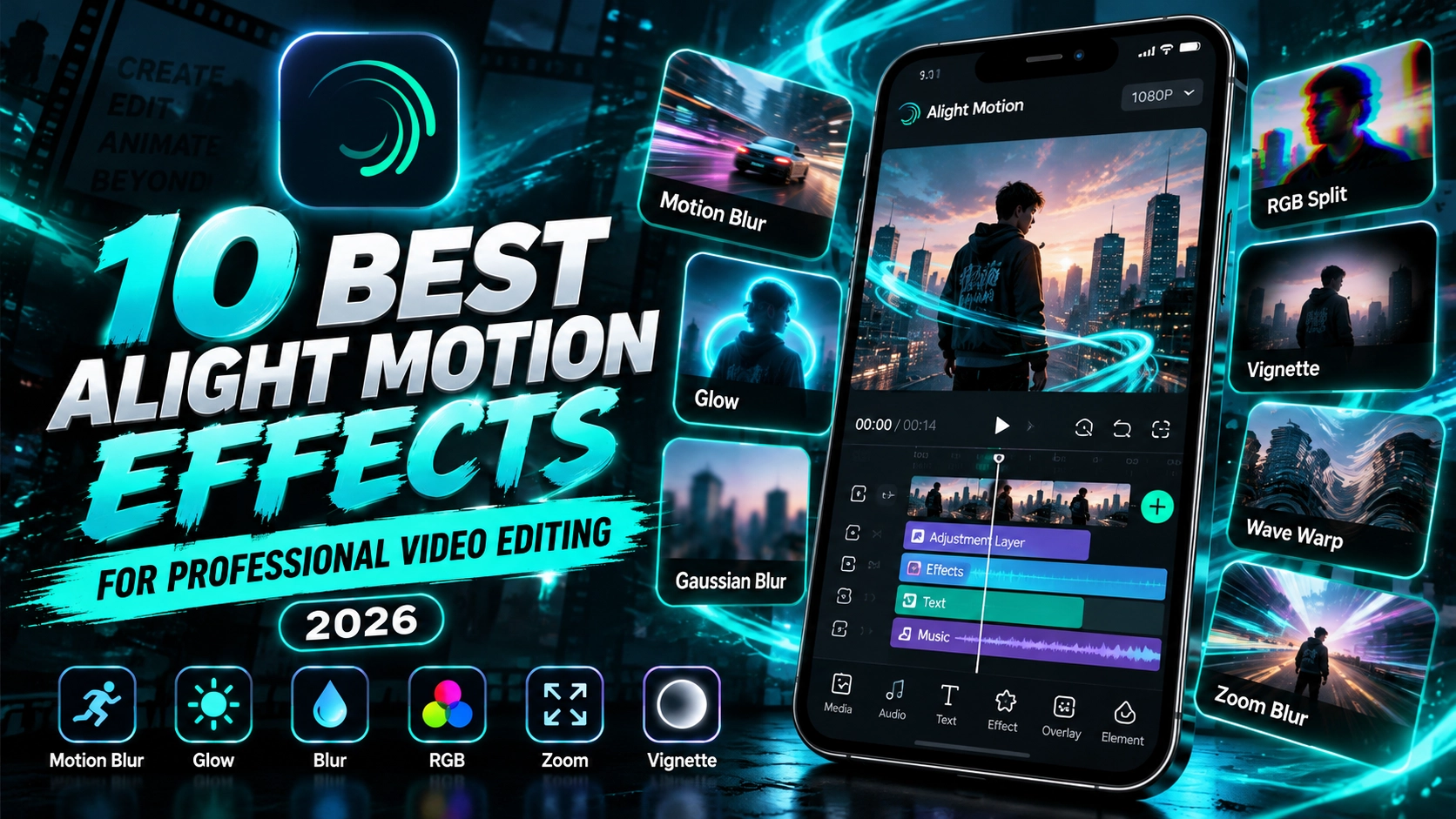
In this guide, you will discover the 10 best Alight Motion effects for professional video editing. You will also learn how to apply them, improve video quality, and create eye-catching content in 2026.
1. Motion Blur Effect for Smooth Animations
The Motion Blur effect makes moving objects look smoother and more natural. Alight Motion uses this effect to add realistic blur to animated movement.
When you animate text, images, or shapes, Alight Motion can create motion blur based on changes in position, rotation, and scale.
How to Apply Motion Blur
- Open your video editing project.
- Select an animated layer.
- Tap the Effects option.
- Choose Motion Blur.
- Adjust the blur strength.
- Preview your animation.
Benefits of Motion Blur
- Creates smooth-looking animations.
- Adds realistic movement.
- Improves fast transitions.
- Makes moving text more dynamic.
Pro Tip: Use moderate blur settings to keep your animations clear and attractive.
2. Glow Effect for Attractive Visuals
The Glow effect adds a bright outline around objects and text. Alight Motion provides this effect to help editors create colorful and eye-catching graphics.
You can use Alight Motion to create glowing titles, neon designs, and attractive animated shapes.
How to Use the Glow Effect
- Add a text, image, or shape layer.
- Open the Effects menu.
- Select Glow.
- Adjust the available glow controls.
- Choose suitable colors for your design.
- Preview the final appearance.
Best Uses
- Gaming video introductions.
- Neon text animations.
- Social media graphics.
- Creative logo animations.
Pro Tip: Combine bright glow colors with dark backgrounds for better visual contrast.
3. Gaussian Blur Effect for Soft Backgrounds
Gaussian Blur creates a smooth and soft appearance. Alight Motion allows you to blur selected layers without changing your entire video.
With Alight Motion, you can create soft backgrounds that help viewers focus on important objects or text.
Steps to Add Gaussian Blur
- Select the background layer.
- Open the Effects section.
- Search for Gaussian Blur.
- Apply the effect.
- Adjust the blur amount.
- Review the result.
Why Use Gaussian Blur?
- Creates soft backgrounds.
- Reduces distracting details.
- Improves text visibility.
- Adds a cinematic appearance.
Pro Tip: Keep your main subject sharp while blurring the background for a cleaner design.
4. RGB Split Effect for Glitch Videos
RGB Split creates a colorful separation between red, green, and blue image channels. Alight Motion includes this effect for creative visual editing.
You can use Alight Motion to create glitch-style transitions, gaming edits, and energetic music videos.
How to Apply RGB Split
- Select your video layer.
- Open the Effects menu.
- Find RGB Split.
- Apply the effect.
- Adjust the channel separation.
- Preview the changes.
Popular Uses
- Gaming montages.
- Glitch transitions.
- Music beat edits.
- Futuristic video intros.
Pro Tip: Apply RGB Split briefly during fast transitions to avoid distracting viewers.
5. Hue Shift Effect for Creative Color Changes
Hue Shift changes the colors of your video. Alight Motion makes it possible to create colorful visual styles by adjusting hue values.
You can use Alight Motion to create animated color changes that make ordinary footage look more interesting.
Steps to Use Hue Shift
- Open your editing project.
- Select the video or image layer.
- Tap Effects.
- Choose Hue Shift.
- Adjust the hue setting.
- Preview different color combinations.
Benefits of Hue Shift
- Creates colorful animations.
- Adds unique visual styles.
- Makes creative backgrounds.
- Supports animated color transitions.
Pro Tip: Use small hue adjustments when you want realistic colors.
6. Sharpen Effect for Clear Video Details
The Sharpen effect improves the appearance of fine details. Alight Motion includes this tool to increase contrast around image edges.
You can use Alight Motion to make suitable video clips appear clearer, especially when the original footage looks slightly soft.
How to Apply the Sharpen Effect
- Select the video layer.
- Open the Effects menu.
- Search for Sharpen.
- Apply the effect.
- Increase the strength gradually.
- Check the video preview.
Best Uses
- Product videos.
- Nature footage.
- Close-up shots.
- Social media video edits.
Pro Tip: Avoid excessive sharpening because it can create unnatural edges and increase visible noise.
7. Vignette Effect for Cinematic Videos
Vignette darkens or changes the appearance of areas near the edges of an image. Alight Motion provides this effect to help editors guide attention toward the center.
With Alight Motion, you can use a subtle vignette to create dramatic scenes and improve the visual focus of your footage.
Steps to Apply Vignette
- Select your video clip.
- Open the Effects section.
- Choose Vignette.
- Adjust the effect settings.
- Keep the center of your video clear.
- Preview the final appearance.
Benefits of Vignette
- Creates cinematic-looking footage.
- Draws attention to the main subject.
- Adds visual depth.
- Improves dramatic scenes.
Pro Tip: Keep the vignette subtle for a natural and professional result.
8. Wave Warp Effect for Creative Distortion
Wave Warp creates wave-like distortion in your visuals. Alight Motion offers this effect for editors who want to experiment with unusual movement.
You can use Alight Motion to create animated waves, distorted backgrounds, and energetic visual transitions.
How to Apply Wave Warp
- Add an image or video layer.
- Open the Effects menu.
- Select Wave Warp.
- Adjust the wave settings.
- Animate supported properties if needed.
- Preview the movement.
Creative Uses
- Music videos.
- Animated backgrounds.
- Abstract visuals.
- Creative transitions.
Pro Tip: Use gentle wave movement for backgrounds and stronger distortion for short creative scenes.
9. Exposure / Gamma Effect for Better Lighting
Good lighting makes videos look cleaner. Alight Motion includes the Exposure / Gamma effect to help you adjust image brightness and tonal values.
You can use Alight Motion to improve footage that looks too dark or too bright. This effect also helps you balance highlights and midtones.
How to Adjust Exposure and Gamma
- Select your video layer.
- Open the Effects menu.
- Choose Exposure / Gamma.
- Adjust the exposure carefully.
- Fine-tune gamma and offset.
- Preview your lighting changes.
Main Benefits
- Improves video brightness.
- Adjusts dark and bright areas.
- Helps balance lighting.
- Supports creative color grading.
Pro Tip: Avoid extreme adjustments because they can remove detail from bright or dark areas.
10. Zoom Blur Effect for Dynamic Transitions
Zoom Blur creates a blur that spreads outward or inward around a focal point. Alight Motion offers this effect for creating fast and energetic visuals.
You can use Alight Motion to build dramatic zoom transitions, exciting introductions, and action-focused edits.
Steps to Apply Zoom Blur
- Select your video layer.
- Open the Effects section.
- Search for Zoom Blur.
- Apply the effect.
- Adjust the blur settings.
- Animate supported controls when needed.
- Preview your transition.
Best Uses
- YouTube Shorts.
- Gaming highlights.
- Music videos.
- Fast-paced social media edits.
Pro Tip: Keep Zoom Blur transitions short so viewers can follow the action.
How to Choose the Best Effects for Your Videos
Choosing the right effect depends on your video’s purpose. Alight Motion provides many creative options, but every effect should improve the final result.
When editing with Alight Motion, focus on visual balance, smooth animations, and clear storytelling.
Simple Tips for Better Editing
- Use Motion Blur for animated movement.
- Choose Glow for neon text and graphics.
- Apply Gaussian Blur to distracting backgrounds.
- Use RGB Split for short glitch effects.
- Adjust Exposure / Gamma for better lighting.
- Add Zoom Blur for energetic transitions.
Avoid combining too many heavy effects. This can make your video difficult to watch and slow down editing on some devices.
Conclusion
Professional video editing requires creativity, practice, and the right tools. Alight Motion offers useful effects that help beginners and experienced editors improve their videos.
Start with simple effects like Glow, Gaussian Blur, and Sharpen. Then explore Motion Blur, RGB Split, and Wave Warp as your editing skills grow.
By practicing regularly with Alight Motion, you can create impressive videos for social media, gaming content, and personal projects.
Remember, the best editing results come from choosing effects carefully rather than adding as many as possible.